Double-entry, made explicit
Every transaction records at least two postings. The postings balance each other, which makes missing destinations and accidental one-sided edits easier to catch.
A practical guide to BeanFlow
BeanFlow keeps everyday entry approachable while preserving a balanced double-entry ledger underneath. This guide explains what Beancount is, how BeanFlow relates to it, and the daily workflow.
01 · Beancount
Beancount is a plain-text, double-entry accounting language. Instead of storing a transaction as an isolated number, it records how value moves between accounts, so the ledger can be checked, searched, versioned, and moved between tools.
Every transaction records at least two postings. The postings balance each other, which makes missing destinations and accidental one-sided edits easier to catch.
A ledger file can be read as text, reviewed in a diff, backed up, and migrated without locking the account history inside one database format.
BeanFlow does not use a .bean file as its runtime database. The app uses local SwiftData for the live ledger, while Beancount is the bridge for importing and exporting structured account history.
Paths such as Assets:Bank:Checking and Expenses:Food:Coffee make the account hierarchy visible. BeanFlow keeps the same structure available when you need detailed reports or migration.
A small example
The expense increases while the cash account decreases. The two postings describe one event from both sides.
2026-09-19 * "Coffee"
  Expenses:Food:Coffee    28.00 CNY
  Assets:Cash            -28.00 CNY
The amounts balance to zero. In BeanFlow, the same relationship is created through the transaction editor; you do not need to type this syntax for everyday entry.
02 · Use BeanFlow
Start with the simple interface, then add account detail, budgets, imports, and reports as your ledger grows.
Use Simple Mode for fast everyday entries. Choose paid Beancount Mode when you want full account paths, ledger import/export, and stricter bookkeeping workflows.
Set the default currency in Settings, then create the accounts you actually use: bank, cash, cards, income sources, and expense categories.
Choose Expense, Income, or Transfer. Select the source and destination accounts, enter a positive amount, choose the date, and add a useful description or tag.
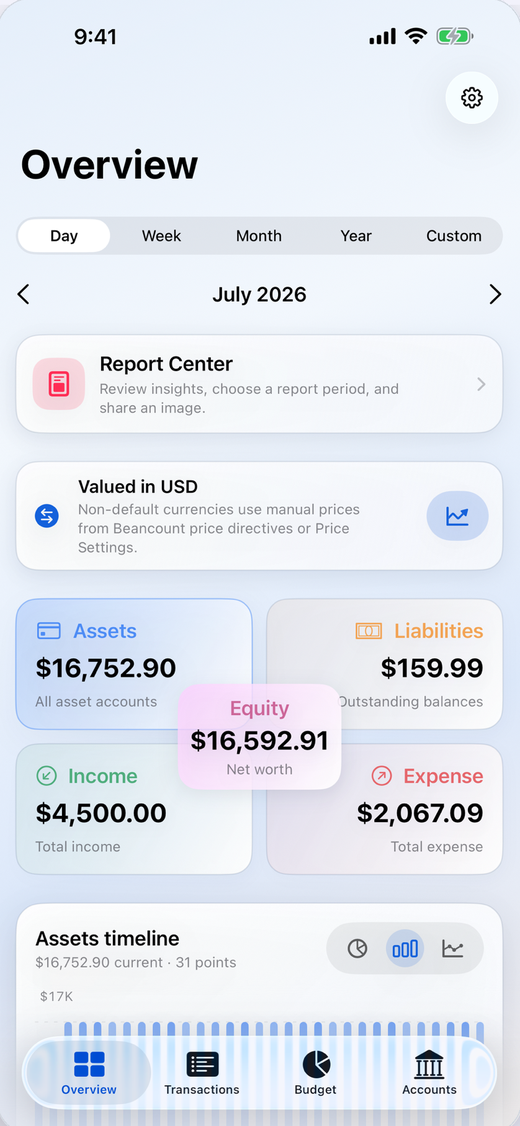
Use Overview to check assets, liabilities, income, expenses, equity, trends, and category charts. Use Budgets to set a limit for an expense category and follow its progress.
In Settings, import Beancount files, Bean packages, or CSV. Export a single file, package, or CSV only when you choose to save or share it.
The ledger stays local by default. If you enable iCloud sync, supported records use your private CloudKit database; Widgets and Apple Watch receive limited summary snapshots.
Transaction shortcuts
The editor keeps the user-facing flow short while BeanFlow creates the corresponding balanced postings.
From an asset or liability account to an expense category. Example: cash or card → Food:Coffee.
From an income category to the account that receives the money. Example: Salary → Bank:Checking.
Between two asset or liability accounts. Example: Bank:Checking → Cash. The source and destination must be different.
03 · Complete feature tour
BeanFlow is more than a quick expense form. It connects a structured ledger, valuation, reports, budgets, migration, and private cross-device summaries into one workflow.
The app keeps the accounting model visible without forcing every user to start with accounting jargon.
The editor turns common money movements into balanced entries with a short, repeatable form.
The Overview screen separates “what happened during the period” from “what the accounts are worth at the end”.
Accounts can stay simple at first and become a meaningful hierarchy as the ledger grows.
Budgets turn expense categories into a forward-looking control instead of a number you only inspect afterward.
Beancount is the portability layer: the app stays database-driven at runtime, while files remain available for migration and sharing.
Amounts are entered in the user’s regional format, while file formats remain strict and portable.
For supported bill and statement workflows, BeanFlow can turn on-device recognition into reviewable transaction candidates.
BeanFlow is designed to work without a developer-hosted account or ledger server.
The companion surfaces are summaries, not a second copy of the raw ledger.
How the pieces connect
A transaction is entered once. BeanFlow then keeps the same balanced source available to the ledger, reports, budgets, and cross-device snapshots.
| Area | Simple Mode | Beancount Mode |
|---|---|---|
| Best for | Fast daily expenses, income, transfers, and summaries. | People who want full account paths, migration, valuation, and stricter ledger workflows. |
| Entry experience | Short, approachable forms with balanced postings created behind the scenes. | The same transaction flow, with deeper account structure and ledger-oriented tools. |
| Data and files | Local-first app ledger for everyday use. | Beancount/Bean package/CSV import and export, account naming, prices, and compatibility preview. |
| Reports | Overview, budgets, and the core financial picture. | The same overview plus detailed account hierarchy, valuation, ledger health, and migration context. |
| Switching | Start free and move to Beancount Mode later when the extra structure becomes useful. | A compatibility preview lets you inspect a ledger before committing to the paid mode. |
04 · Questions
No. Simple Mode is designed for normal daily entry. Beancount Mode adds the deeper account and migration tools when you want them.
The live ledger is stored on your Apple device by default. BeanFlow does not run a developer-hosted ledger server. Optional iCloud sync uses your private CloudKit database.
Yes. You can import supported Beancount or CSV data, review the import report, and export the ledger later as Beancount, a Bean package, or CSV.
Normal entry keeps the postings balanced. During import, invalid or unbalanced transactions are reported and skipped unless you explicitly enable the auto-balance option.
Record one real transaction today, then use the overview to see how the two sides of that transaction affect your accounts.